Building My Own Corner of the Web
I wanted a small corner of the web for notes and Rust experiments, hosted in Europe and outside the largest cloud platforms. Building it would also let me understand the entire path from typing a domain name to seeing a page, rather than hide that process behind a website builder. I chose the name Clewras by shortening cleaner wrasse, a small reef fish.
Deploying and maintaining a site by hand is a time-consuming hobby, but not an expensive one. My costs are:
- €9.50 before VAT to register
clewras.comwith the Swiss provider Infomaniak. - €5.86 per month including German VAT for Netcup’s VPS Lite 1, billed as €35.16 every six months. It provides two x86 virtual cores, 4 GB of RAM and 80 GB of storage—more than enough for a static site, with room for future Rust services.
I chose different companies for the domain and server to avoid tying both to one account. If I lose access to the hosting provider, I can still point the domain to another server through Infomaniak. A few DNS records are all that connect them.
Preparing the server
The first login was the least glamorous and most important part. I installed
Debian 13, created a normal administrator account named illia, copied my SSH
key, and confirmed that sudo worked before changing the SSH configuration.
Keeping the original session open while testing a second one is important: a
mistake here can otherwise lock the administrator out of the server.
The local SSH configuration in ~/.ssh/config gives the server a memorable
alias:
Host clewras
    HostName 202.61.201.133
    User illia
    IdentityFile ~/.ssh/id_rsa
This shortens ssh illia@202.61.201.133 to ssh clewras, so later commands do
not need to repeat the user and IP address.
Next, I secured SSH by allowing key-based login only and disabling passwords,
interactive authentication and direct root logins. I put these settings in
/etc/ssh/sshd_config.d/00-clewras-hardening.conf:
PubkeyAuthentication yes
PasswordAuthentication no
KbdInteractiveAuthentication no
PermitRootLogin no
PubkeyAuthentication keeps key-based access enabled. The next two settings
turn off password and keyboard-interactive prompts, removing common targets for
automated login attempts. PermitRootLogin no requires logging in as the
normal illia user and using sudo for administrative work.
Debian loads configuration snippets from /etc/ssh/sshd_config.d/. A separate
drop-in keeps my changes easy to find, review and remove without editing the
main distribution-managed file. The 00- prefix loads this file early, which
matters because SSH uses the first value it finds for most settings.
I validated the file before reloading SSH, then inspected the effective configuration rather than assuming the drop-in won:
sudo sshd -t
sudo sshd -T | grep -E \
  '^(pubkeyauthentication|passwordauthentication|kbdinteractiveauthentication|permitrootlogin) '
sudo systemctl reload ssh
sshd -t checks the configuration for errors. sshd -T prints the effective
configuration after all files have been combined, and grep selects the four
settings I changed. Finally, systemctl reload applies them without dropping
the current SSH connection.
In a fresh terminal I tested ssh clewras again. Only after that connection
succeeded did I close the original root session.
Firewall and updates
UFW denies incoming connections by default. I allowed web traffic, initially allowed SSH, enabled the firewall, and then replaced the ordinary SSH rule with a rate-limited one:
sudo apt install ufw
sudo ufw default deny incoming
sudo ufw default allow outgoing
sudo ufw allow OpenSSH
sudo ufw allow 80/tcp
sudo ufw allow 443/tcp
sudo ufw enable
sudo ufw delete allow OpenSSH
sudo ufw limit OpenSSH
sudo ufw logging off
sudo ufw status verbose
The resulting public TCP ports are 22, 80 and 443. Netcup's separate SMTP-block policy remains enabled because this machine does not run a mail server. Automatic Debian security updates are enabled as well.
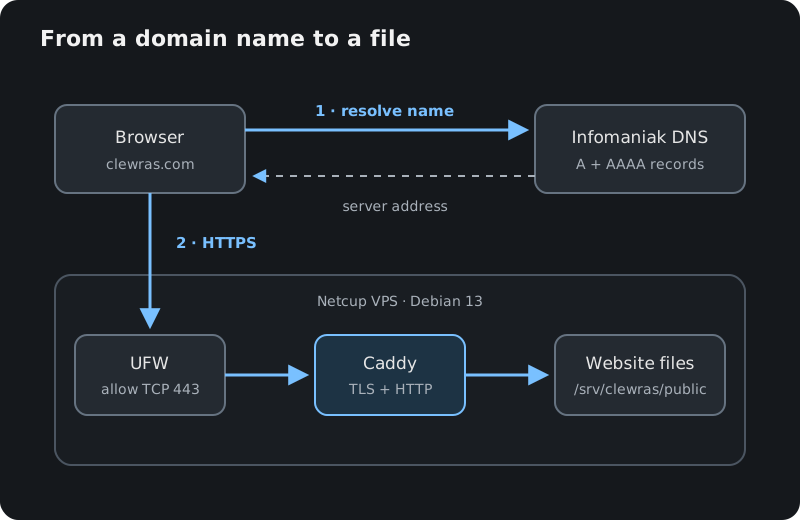
The public side is intentionally small. DNS lookup happens first; the browser then connects directly to the returned VPS address:
DNS
Infomaniak holds the DNS zone. These are the relevant records:
@       3600  IN  A      202.61.201.133
@       3600  IN  AAAA   2a03:4000:5a:47a:94db:c6ff:fe12:47d3
www     3600  IN  CNAME  clewras.com.
@       3600  IN  TXT    "v=spf1 -all"
_dmarc  3600  IN  TXT    "v=DMARC1; p=reject;"
The A and AAAA records connect the root domain to the VPS over IPv4 and
IPv6. www follows the root domain instead of duplicating its addresses.
Because Clewras sends no email, SPF and DMARC reject mail claiming to come from
it.
I queried Infomaniak's authoritative name server directly to verify the two address records without waiting for a local DNS cache:
dig +short A clewras.com @ns11.infomaniak.ch
dig +short AAAA clewras.com @ns11.infomaniak.ch
Caddy and HTTPS
Caddy serves the files from
/srv/clewras/public. I installed it and created the public directory with:
sudo apt install caddy rsync
sudo install -d -m 755 -o illia -g illia /srv/clewras/public
Its complete configuration is /etc/caddy/Caddyfile:
clewras.com {
	root * /srv/clewras/public
	encode zstd gzip
	file_server
}

www.clewras.com {
	redir https://clewras.com{uri} permanent
}
Before applying a change, I ask Caddy to parse the file. A reload then replaces the running configuration without interrupting active connections:
sudo caddy validate --config /etc/caddy/Caddyfile
sudo systemctl reload caddy
Once this configuration contained the public hostname, Caddy contacted a
certificate authority, proved control of the domain through the public server,
and obtained a trusted TLS certificate. It redirects HTTP to HTTPS and renews
the certificate automatically, so there is no separate Certbot setup. The
second site block permanently redirects requests from www.clewras.com to
clewras.com while preserving the rest of the URL. The encode zstd gzip
directive compresses responses with Zstandard or Gzip when the browser
supports them, reducing the amount of data transferred.
Certificate issuance and an ordinary visit use the same public edge but have different purposes:
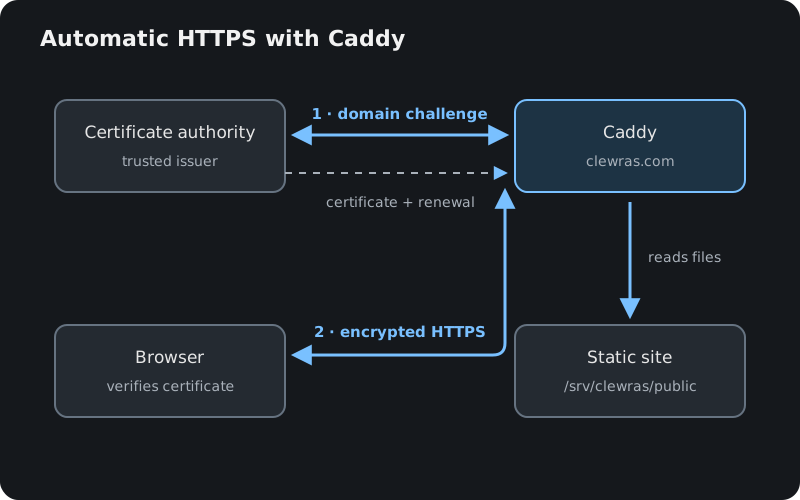
The certificate tells the browser that the server controls clewras.com.
After that identity check, TLS encrypts the request and response between the
browser and Caddy.
The service can be checked from both sides:
curl -I https://clewras.com
sudo systemctl status caddy
sudo ss -lntup
The final command should show SSH on port 22, Caddy on 80 and 443, and Caddy's
administration endpoint on 127.0.0.1:2019. That last address is local to the
VPS and is not a public service.
Building and deploying
The source is a Zola site. The content moves in one direction; the VPS never needs the source tree or Zola itself:
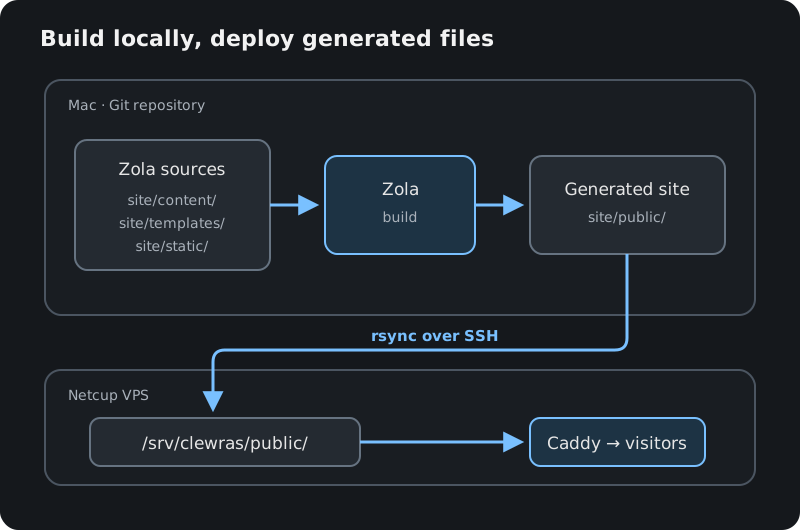
From the repository root I build it locally and copy only the generated output over SSH:
zola --root site build && \
  rsync -av site/public/ clewras:/srv/clewras/public/
The trailing slashes matter: this copies the contents of site/public/ into
the server's public directory. The generated directory is ignored by Git;
articles, templates and static assets live under site/content/,
site/templates/ and site/static/.
There is no container, control panel, database or CI pipeline yet. Every added layer is another thing to understand and maintain, so I would rather add those when the site gives me a reason.
The configuration and data are deliberately separated by purpose:
/etc/ssh/sshd_config.d/00-clewras-hardening.conf  SSH access
/etc/caddy/Caddyfile                              website routing
/etc/systemd/system/caddy.service.d/override.conf service override
/etc/systemd/journald.conf.d/00-clewras-limits.conf
                                                  log limits
/srv/clewras/public/                              public site files
/var/lib/caddy/                                   Caddy state and certificates
Keeping logs bounded
The journald limit is a small drop-in file rather than an edit to Debian's main
configuration. /etc/systemd/journald.conf.d/00-clewras-limits.conf contains:
[Journal]
SystemMaxUse=100M
SystemKeepFree=500M
The first value caps persistent journal storage; the second tells journald to shrink it further when disk space is low. I applied and checked it with:
sudo systemctl restart systemd-journald
sudo systemd-analyze cat-config systemd/journald.conf
Caddy's systemd unit also has
/etc/systemd/system/caddy.service.d/override.conf:
[Service]
StandardError=null
At this stage HTTP access logging is not enabled, UFW logging is off, and this override prevents Caddy's stderr from accumulating in the journal. Its effective value can be confirmed with:
sudo systemctl daemon-reload
sudo systemctl restart caddy
systemctl show caddy.service --property=StandardError
None of this was necessary just to put a static site online. GitHub Pages or another hosted service could have done that for free and with less maintenance. But publishing the site was only half the goal. I wanted a place to tinker—to understand how DNS, SSH, firewalls, TLS and deployment fit together instead of receiving them as a finished service. The result is deliberately simple: a domain, a small Debian machine, a web server and files I control. That simplicity is the useful part, and a foundation for whatever experiments come next.